
How to split a song into stems on a Mac (Apple Silicon)
On an Apple Silicon Mac you can split a song into stems locally: load the song into a separation app, choose which parts you want (vocals, drums, bass, guitar, piano, other), and it writes each part as its own audio file. Nothing has to be uploaded.
What to check in a Mac stem splitter
- Does it run on your Mac? Many current separation apps are built for Apple Silicon only, and some need a recent macOS. Check the chip (M1 or newer, or Intel) and macOS version before you download.
- Local or cloud? Some apps upload your song to a server and send the stems back. Local apps run the model on your Mac: no upload, no queue, and they keep working offline.
- Which stems? The common split is vocals, drums, bass and other. Some models also separate guitar and piano, which matters if you play one of them.
- Is the app signed and notarized? A notarized app opens with one confirmation. An unsigned one sends you to System Settings to allow it.
- What happens after the split? Some apps just write files. Others let you mix, mute and play along, or convert a stem to MIDI.
Step by step on a Mac
- Get a good source file. WAV or AIFF is best. If you pull audio from a link, save it as WAV rather than MP3 so the separator has full detail to work with.
- Choose the split. Just want a karaoke track? Ask for an instrumental. Practicing bass? Ask for every stem so you can mute the bass and keep the rest.
- Run the split and leave the Mac to it. Separation is heavy work, so a longer song or an older chip takes more time.
- Check the stems on headphones, soloing each one through the loudest part of the song.
- Use them: drag them into Logic or GarageBand, mix them, or play along with one muted.
Where AudioPrism fits
AudioPrism runs on Macs with Apple Silicon (M1 or newer, macOS 12+) and on Windows 10/11. Since version 2.3 the Mac app is signed with a Developer ID and notarized by Apple, so the first launch asks once whether to open it, and that's it.
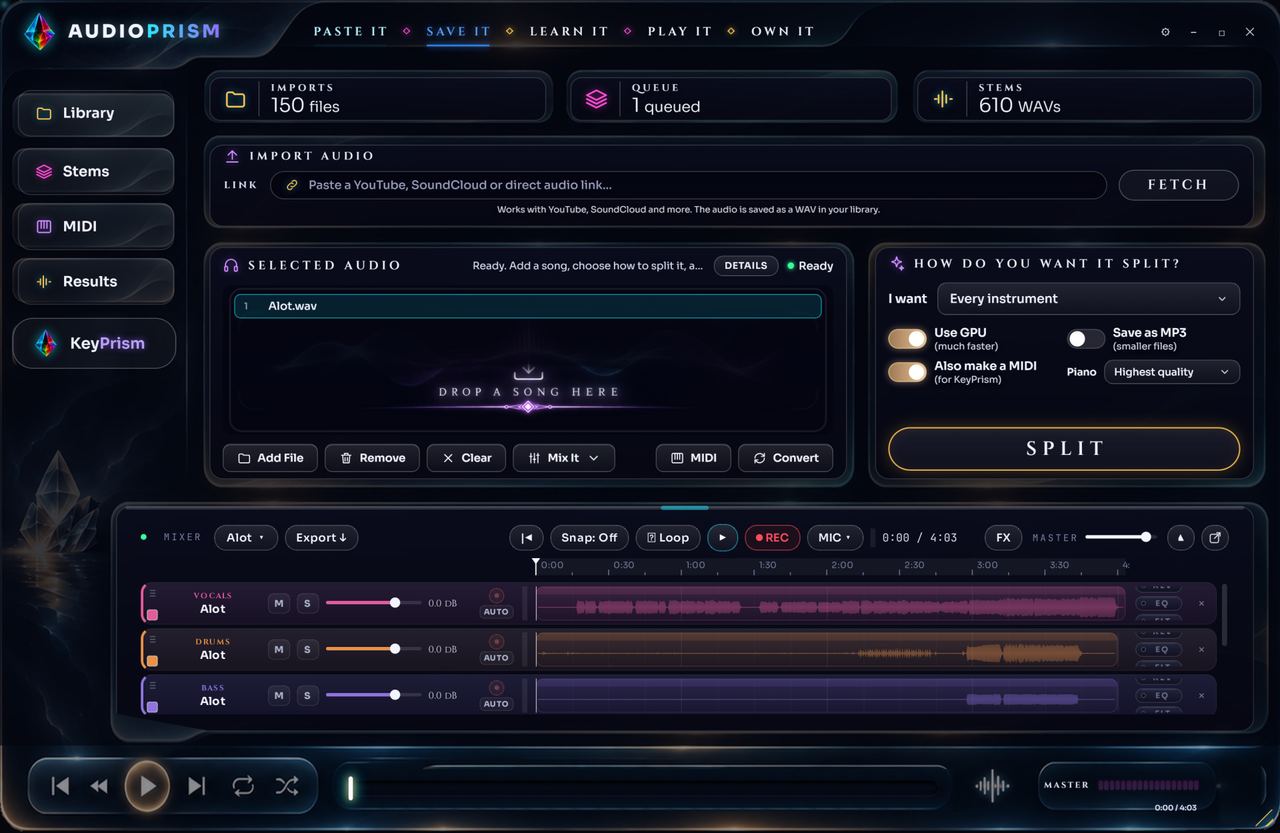
- Get the song: drop in a file, or paste a YouTube, SoundCloud or direct link. Audio from a link is saved as a WAV.
- Split it offline with Demucs: an acapella, an instrumental, any single instrument, or all six stems (vocals, drums, bass, guitar, piano, other). It runs on Apple Silicon; nothing is uploaded.
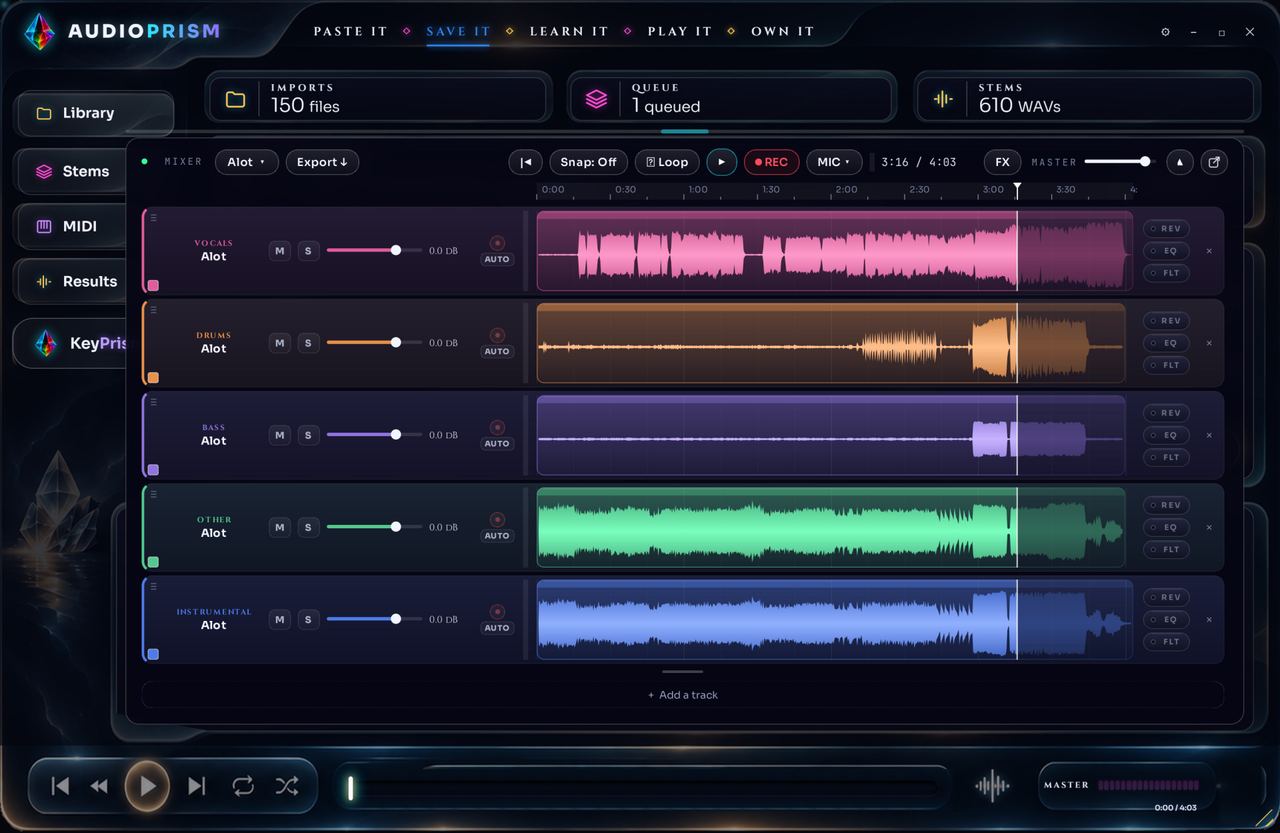
- Mix and record: the stems open in a built-in mixer with mute, solo and levels, and you can record yourself over the song.
- MIDI: any stem exports to MIDI with one button.
- Learn it on piano: KeyPrism, the trainer built in, shows the song's piano part as falling notes with note names and fingering. Slow it to 40%, loop a bar, practice hands separately.
Honest limits
- Intel Macs are not supported.
- We don't publish speed figures for Mac. It runs on Apple Silicon, and how long a split takes depends on your chip and the song.
- Separation can leave traces: dense mixes may leave a little bleed between stems.
- No account, upload or daily limit, but the license key needs one online activation.
Questions people ask
Does AudioPrism run on Intel Macs?
No. The Mac version needs Apple Silicon (M1 or newer) and macOS 12 or later.
Will macOS block the app when I first open it?
AudioPrism 2.3 for Mac is signed and notarized by Apple, so the first launch only asks whether you want to open an app downloaded from the internet. Click Open. If you still have an older 2.1 or 2.2 download, download it again.
Which stems can it make?
Up to six: vocals, drums, bass, guitar, piano and other. You can also ask for just an acapella, just an instrumental, or any single instrument.
Can I use the stems in Logic, GarageBand or another DAW?
Yes. The stems are ordinary audio files you can drag into any DAW, and any stem can also be exported to MIDI with one button.
Does it need an internet connection?
Only to activate the license once and to fetch a song from a link. Separation itself runs offline on your Mac.