
How to convert audio or an MP3 to MIDI
Separate the part you want first, then convert only that part. Audio-to-MIDI converters do well on one clean instrument and badly on a full mix, so split the song into stems, run the piano, bass or vocal stem through the converter, and tidy the result in your DAW.
Why audio to MIDI is hard
A MIDI file is a list of notes: which pitch, when it starts, how long it lasts, how hard it's played. A recording is a single waveform with every instrument blended together. A converter has to guess which frequencies belong to which notes, and in a full mix the guitar's overtones, the singer's vibrato and the drums all look like notes too. That is why converting a finished song straight to MIDI usually gives a cloud of wrong notes.
Give the same converter one instrument on its own and the job gets much easier. That's the whole trick.
The split-first method
- Start from a good recording. WAV or another lossless file if you can.
- Split the song into stems with a stem separator: vocals, drums, bass and the rest, or a finer split that includes guitar and piano.
- Pick the stem you want as MIDI and listen to it soloed. If it sounds clean to you, it will convert well.
- Convert that stem to MIDI. One instrument in, one MIDI track out.
- Import the MIDI into your DAW or notation program and play it back against the original stem.
- Tidy it. Delete stray short notes, fix any octave jumps, and quantize lightly if you want it on the grid. A short cleanup pass turns a good conversion into a usable part.
What you can do with the MIDI
- Replay a bass line or piano part with a different instrument sound.
- Double a vocal melody on a synth, or use it to write harmonies.
- Open it in notation software to get a starting point for sheet music.
- Load it into a falling-notes piano trainer and learn the part.
Where AudioPrism fits
AudioPrism is a desktop app for Windows and Mac (Apple Silicon) that does steps 2 to 4 in one place, offline.
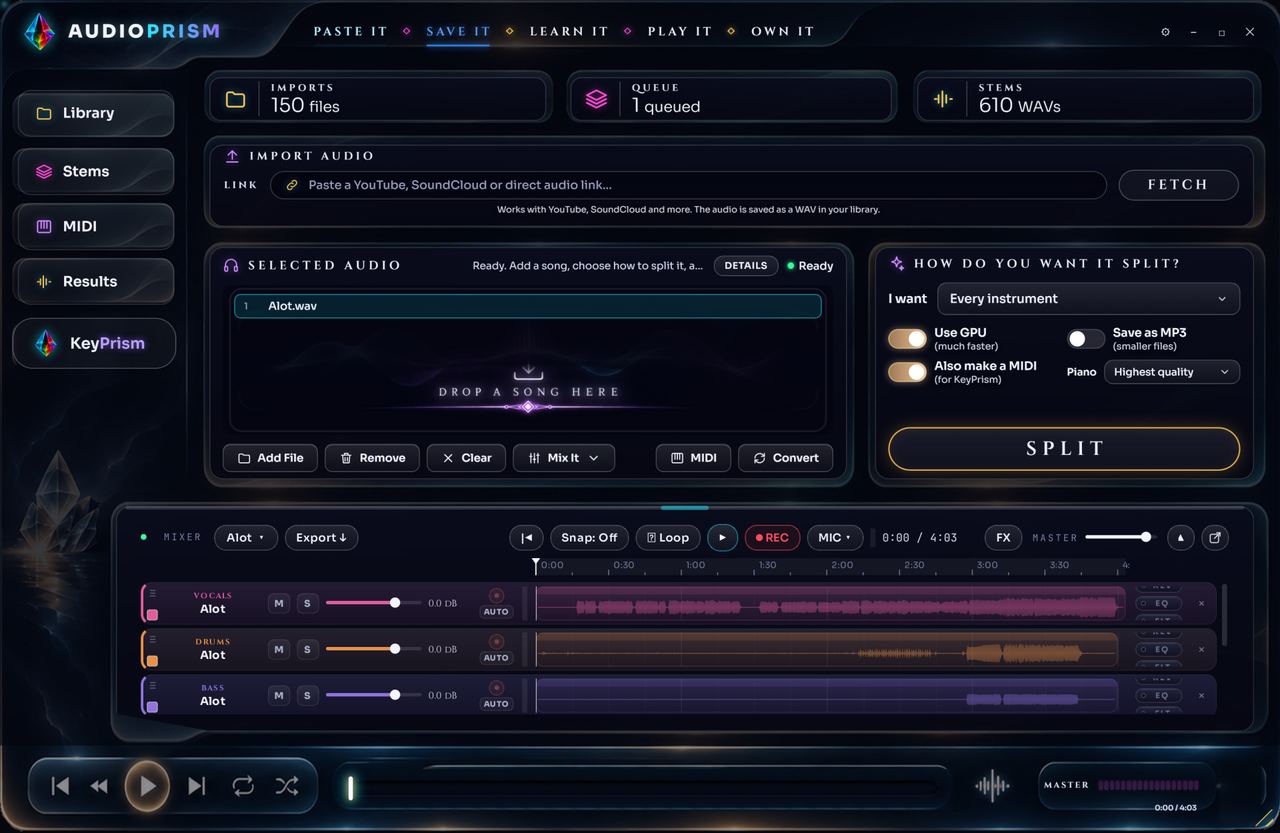
- Drop in a file, or paste a YouTube, SoundCloud or direct link. The audio is saved as a WAV, not an MP3.
- Split it with Demucs on your own computer: all six stems (vocals, drums, bass, guitar, piano, other), an acapella, an instrumental, or any single instrument.
- Export any stem to MIDI with one button, then drag the file into your DAW.
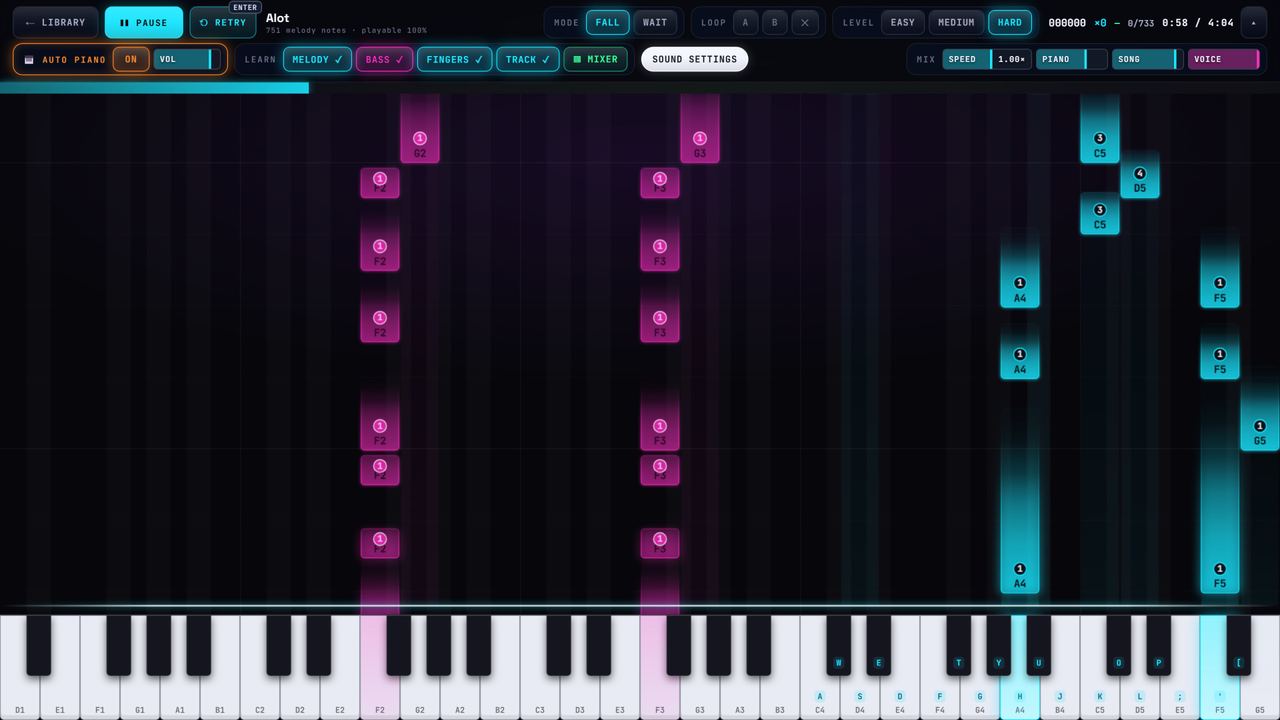
If the part you want is piano, you can skip the DAW: KeyPrism, the piano trainer built in, isolates the piano part and shows it as falling notes with note names and fingering, so you can learn it straight away, slowed to 40% and one hand at a time.
Honest limits
- MIDI made from a recording is a strong starting point, not a finished transcription. Expect to fix a few notes, especially in fast or heavily layered passages.
- Drums don't turn into useful pitched notes; convert melodic stems.
- Splitting is fastest on an NVIDIA GPU and falls back to the CPU without one. On Mac it runs on Apple Silicon (M1 or newer, macOS 12+); Intel Macs are not supported.
- The Windows download is a 7.3 GB zip.
Questions people ask
Can I convert a whole song to MIDI in one go?
You can, but the result is usually a tangle of notes from every instrument. Splitting first and converting one stem at a time gives MIDI you can actually use.
Which parts convert best?
Parts that play one clear line or clear chords: piano, bass, a lead vocal melody. Drums and dense, distorted guitars are hardest to turn into pitched notes.
Does the MIDI keep the song's tempo?
The notes keep their timing from the recording. Recordings drift slightly in tempo, so if you want the notes on a strict grid, quantize them in your DAW.
Which stems can AudioPrism export to MIDI?
Any stem, with one button. The stems are vocals, drums, bass, guitar, piano and other.
Does the conversion upload my audio?
No. AudioPrism splits and converts on your own computer, with no account and no daily limit.